
Disclosure: WebRenamer is our product, so we have an obvious interest in it. We have kept its limitations in the table, linked every third-party claim to the maker’s current documentation, and avoided a fake overall score.
Search for a free file renamer and you will find applications with forty controls, utilities hidden inside operating-system menus, and online tools that never explain where the files go. Feature count is a poor way to choose among them. The better question is: what must happen to these names, how often will I repeat it, and what would a mistake cost?
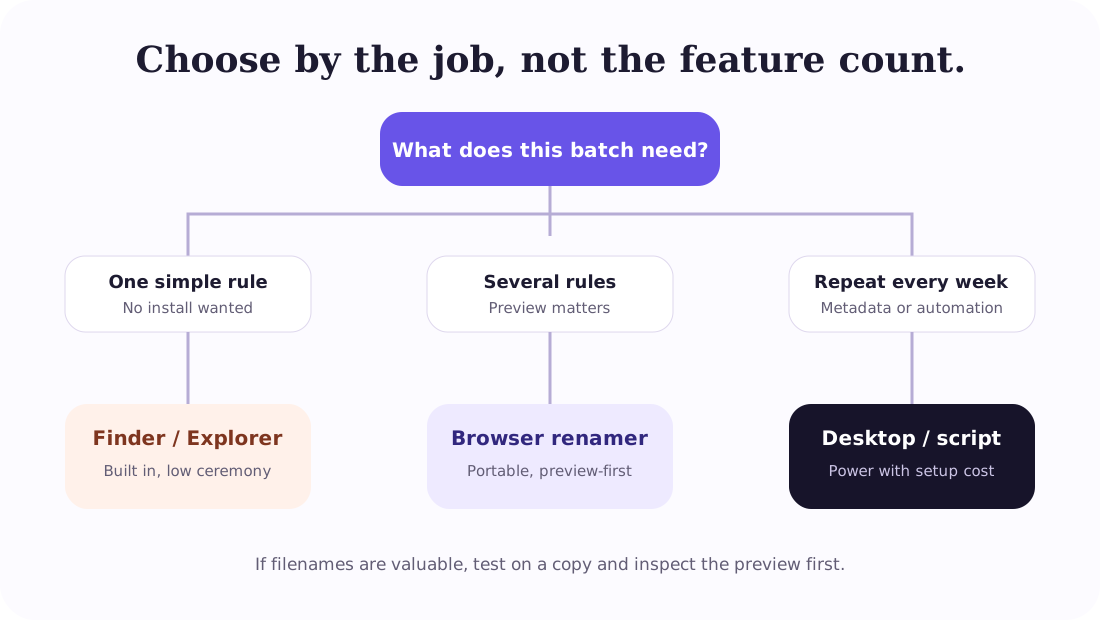
For three dozen screenshots, the best tool may be the one already open in your browser. For a Windows archive whose names depend on capture dates, a desktop utility is worth the setup. For a nightly pipeline, a reviewed script beats clicking through any interface. This comparison covers all three levels instead of pretending they are interchangeable.
1. How we compared free file renamer tools
We used six practical criteria. None is exotic, but together they expose the difference between a good demo and a tool you can trust with a real folder.
- Preview: Can you inspect every destination name before files change?
- Rule depth: Does the tool stop at a base name and counter, or can it combine replacement, case, date, numbering, and pattern rules?
- Platform: Is it tied to Windows or Mac, installed on both, or available in a modern browser?
- Privacy: Are names and file contents handled locally, or does the workflow require an upload?
- Repeatability: Can a useful rule be saved, scripted, or quickly rebuilt?
- Free-use terms: Does “free” mean all use, occasional personal use, home use only, or a limited edition?
We did not benchmark rename speed. On ordinary local batches, the time spent understanding the rule and checking the result matters more than whether the rename itself takes one or three seconds. We also did not reward a tool simply for having more switches. A dense interface can be valuable for specialists and costly for everyone else.
2. Free file renamer comparison at a glance
| Tool | Platform | Best for | Preview / dry run | Free-use note |
|---|---|---|---|---|
| WebRenamer | Modern browser | Occasional multi-rule batches | Live side-by-side preview | Free; no signup |
| File Explorer | Windows | One base name plus numbers | Result appears after rename | Built into Windows |
| Finder | macOS | Replace, add text, or format | Native rename dialog | Built into macOS |
| PowerRename | Windows | Regex and Explorer integration | Preview plus undo | Included with PowerToys |
| Advanced Renamer | Windows, macOS | Metadata and method stacks | Filename list before batch | Free for occasional personal use; limits apply |
| Bulk Rename Utility | Windows | Maximum visible control | Detailed preview | Free for private home use |
| ReNamer Lite | Windows | Rule chains and metadata | Preview before commit | Lite limits rules and presets; check work-use terms |
| PowerShell | Windows; also installable elsewhere | Repeatable automation | -WhatIf dry run | Included with current Windows |
License terms can change. The notes above reflect the vendors’ pages checked on July 31, 2026; read the current license before using a “personal” edition at work. That distinction matters most for Advanced Renamer, Bulk Rename Utility, and ReNamer Lite.
3. Browser and built-in tools: low setup, clear limits
WebRenamer: best for an occasional cross-platform batch
WebRenamer runs in the browser and processes selected files locally. It supports find-and-replace, prefixes, suffixes, character removal, case changes, padded numbering, dates, regular expressions, cleanup, and extension rules. Operations can be stacked and reordered; the preview keeps the original and proposed names visible together and flags invalid or duplicate results.
The good fit is a real but occasional batch: cleaning a client delivery, numbering scans, normalizing asset names, or applying the same two or three rules on a computer where installing software is inconvenient. There is no installer or account, and the original files are not overwritten. Instead, the result downloads as a ZIP.
That export model is also an important limitation. WebRenamer can recursively import folder contents and read selected JPEG EXIF, ID3 audio, and basic PDF metadata locally, but its parsers do not cover every format or metadata field. If you need reliable in-place renaming, broad metadata support, or scheduled automation, choose a desktop utility or script. A browser tool should not pretend to be a filesystem automation platform.
For photos that must follow a manually chosen order, use the visual sequential photo renamer. If you are replacing an established desktop workflow, review the Bulk Rename Utility comparison before deciding.
Windows File Explorer: best for one quick numbered sequence
File Explorer wins the zero-setup category. Select several files, press F2, enter one base name, and Windows adds numeric suffixes to keep the names unique. It is the fastest reasonable choice for a folder that only needs event (1).jpg, event (2).jpg, and so on.
It is not a rules engine. There is no useful way in the basic rename action to keep part of every existing name, replace one fragment, normalize case, and control number padding at the same time. The apparent simplicity becomes repetitive when the job needs several changes.
macOS Finder: best built-in option for a simple transformation
Finder has the strongest native batch dialog in this list. Apple’s current instructions document three modes: replace text, add text before or after the name, and format names with an index, counter, or date. That covers a surprising amount of everyday work.
Finder is especially good when the rule can be said in one sentence: “replace Draft with Final,” “add client-x before every name,” or “call these files receipt with a counter.” It becomes less comfortable when operations need to be stacked or repeated as a reusable recipe. At that point, Advanced Renamer or a browser preview offers a clearer model.
4. Desktop tools: deeper rules, more interface
Microsoft PowerRename: best free Windows upgrade
PowerRename is part of Microsoft PowerToys and appears in File Explorer’s context menu when enabled. It handles plain search-and-replace, regular expressions, case-sensitive matching, filename-only or extension-only changes, enumeration, date tokens, and case formatting. The official documentation also describes a result preview and undo support.
This is the sensible first install for a Windows user who has outgrown F2. It stays close to Explorer instead of asking you to learn a separate file manager. Regex gives it real range: you can target text at the beginning or end of a name, retain capture groups, and narrow changes to the filename or extension.
The tradeoff is platform and packaging. It is Windows-only and arrives as one utility inside the broader PowerToys suite. If you work on both Windows and Mac, you will need a second workflow on the other machine.
Advanced Renamer: best for metadata-heavy Windows and Mac work
Advanced Renamer builds a job from ordered methods. Its current guide lists add, replace, new case, new name, remove, renumber, timestamp, trim, scripting, and other methods. It can use tags derived from file information and can rename, copy, or move during a batch. That makes it a serious fit for photo, audio, and document collections whose final names depend on metadata rather than only the old name.
Unlike several long-standing Windows utilities, the current release is available for both Windows and macOS. The license needs careful wording: as of this review, the publisher describes the free tier as casual or occasional personal use, with up to 10,000 files and five methods per batch. Frequent personal use and commercial work require a paid license. Check the live comparison page before adopting it for a team.
Choose it when metadata or reusable method chains repay the learning time. Skip it when the entire job is “add 001, 002, 003.”
Bulk Rename Utility: best for Windows users who want every control visible
Bulk Rename Utility is a Windows application with controls for inserting and replacing text, changing case, adding numbers and dates, processing folders, and changing extensions. The preview is central to the workflow, and the official site describes it as free for personal, private use at home. Business and commercial use require a license.
Its distinctive trait is density. Much of the rename grammar is visible in one window. An experienced user can shape a complicated result without hopping through multiple dialogs. A first-time user has to decode that same window. This is not a defect so much as a design bet: it favors control and scan speed after the interface has become familiar.
Use it for complex Windows-only batches when you want the knobs in front of you. For a monthly two-rule task, PowerRename or a browser tool will usually demand less attention.
ReNamer Lite: best for compact rule chains on older and current Windows
ReNamer applies an ordered sequence of rules. Its standard operations cover insertion, removal, replacement, case, extensions, numbering, and cleanup. It can also draw names from music, photo, video, and document metadata; advanced users get regular expressions and Pascal Script.
The Lite edition is deliberately bounded. The publisher’s comparison page currently lists a maximum of five renaming rules and five presets, with commercial use reserved for Pro. Five rules are enough for many home batches, but the limit becomes relevant precisely when you start building sophisticated recipes.
ReNamer is Windows-focused and has a portable download, which is useful when you do not want an installer. It is a good candidate for users who think naturally in rule chains and want metadata features without the visual density of Bulk Rename Utility.
5. PowerShell: best when the rename belongs in an automation
PowerShell is not the friendliest file renamer here, but it is the most repeatable. Microsoft’s Rename-Item reference shows how Get-ChildItem can feed multiple files into a replacement expression. A reviewed script can live beside a project, be versioned, and run with the same logic next month.
The essential safety feature is -WhatIf. Add it to a rename command and PowerShell reports the proposed operation without applying it. A script should also select files narrowly, sort explicitly before numbering, use literal paths when names may contain wildcard characters, and fail on collisions instead of improvising.
Get-ChildItem -File *.jpeg |
  Rename-Item -NewName { $_.Name -replace '^IMG_', 'harbor_' } -WhatIf
PowerShell is the right choice when the rule must be automated or audited. It is the wrong choice when you are borrowing a computer, do not understand the selection expression, or need a visual check to notice that one odd filename falls outside the pattern.
6. Our recommendations by situation
For one small numbered batch: use File Explorer on Windows or Finder on Mac. No install, no ceremony.
For several ordinary rules on either platform: use WebRenamer’s bulk file renamer. It is quickest when you want a live preview and a fresh set of renamed copies rather than an in-place change.
For a Windows user who renames files every week: install PowerRename first. It covers a large middle ground without moving the work away from Explorer.
For photo, music, or document metadata: evaluate Advanced Renamer and ReNamer against the tags you actually need. Advanced Renamer has the advantage of current Windows and macOS builds; ReNamer offers a focused rule-chain approach on Windows.
For maximum Windows control in one view: try Bulk Rename Utility. Give yourself time to learn the interface on a copy of the files.
For scheduled or reproducible jobs: write a PowerShell script, keep -WhatIf in the test path, and review the script like any other code that changes data.
If you are still unsure, follow the step-by-step Windows and Mac batch rename guide with a representative set of ten files. The smallest successful test usually makes the right category obvious.
Frequently asked questions
What is the best free file renamer for most people?
For an occasional cross-platform batch, a local browser tool is the lowest-friction choice. Windows PowerRename is stronger for regular Windows use, while Advanced Renamer suits deeper desktop workflows. The best choice depends on rule complexity and frequency.
Is there a free file renamer for both Windows and Mac?
WebRenamer runs in supported browsers on both platforms. Advanced Renamer also offers Windows and macOS downloads, with free use limited by its current license terms.
Which free file renamer supports regular expressions?
WebRenamer, Microsoft PowerRename, Advanced Renamer, Bulk Rename Utility, ReNamer, and PowerShell can all handle pattern-based changes in different ways. Their syntax, preview quality, and learning curves differ.
Are free file renamer tools safe?
A reputable tool can still apply a bad rule perfectly. Work on copies for valuable files, preserve extensions, use a preview or dry run, and check for duplicate destination names before committing.
The practical verdict
Start smaller than your ambition. Built-in tools are excellent when the job is simple. A browser renamer earns its place when a batch needs several understandable rules without an install. Desktop utilities justify themselves through metadata, presets, and repeated use. Scripts belong to workflows that are stable enough to automate.
Our own default is intentionally modest: for a one-off set, open the free online file renamer, add one rule, inspect the preview, then add the next. If the same job returns often, graduate it to PowerRename, a desktop preset, or a tested script.