The short version: use File Explorer when you only need one base name plus numbers; use Finder when you need a simple replace, prefix, suffix, or sequence; use a preview-based renamer when several changes must happen in a specific order.
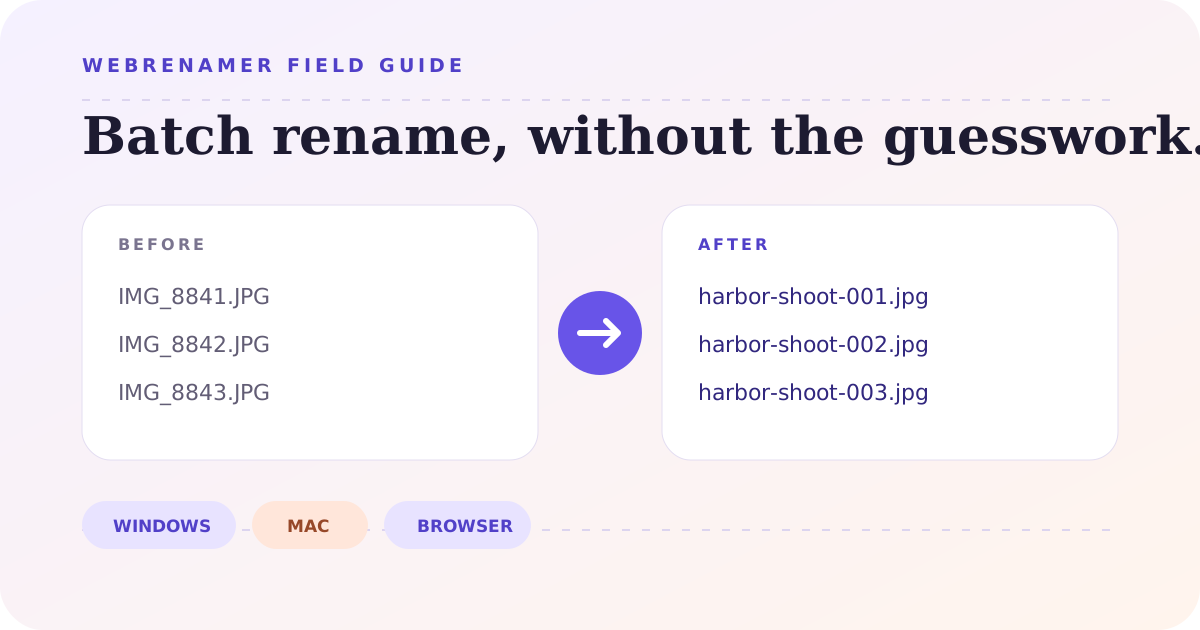
A folder of IMG_8841.JPG, IMG_8842.JPG, and IMG_8843.JPG is understandable to a camera. It is less useful to the person who has to find the harbor shoot six months later. A better set—harbor-shoot-001.jpg through harbor-shoot-003.jpg—sorts correctly and says what the files contain.
The mechanics are easy. The judgment is in choosing a pattern, preserving extensions, and checking that two files do not land on the same final name. That is why the safest batch rename is not the one with the most features. It is the one that lets you see the whole result before you commit.
1. Plan the filenames before touching the folder
Write one final filename before selecting anything. If that example looks awkward, a batch of 400 will only make the problem larger. For most work folders, a dependable pattern has three parts: a specific subject, an optional date or version, and a padded sequence number.
harbor-shoot_2026-07-31_001.jpg is not glamorous, but it carries useful context and sorts predictably. Padding matters: 001, 002, and 010 stay in the expected order, while 1, 2, and 10 may not in every view.
Use this five-minute safety check
- Work on a copy if the files are irreplaceable or the rule is unfamiliar.
- Sort the folder first. Numbering follows a file order, so decide whether name, capture date, or another field should lead.
- Show filename extensions. You need to know whether the rule touches only the name or also
.jpg,.pdf, or another extension. - Check for collisions. Two different source files cannot safely become the same destination name in one folder.
- Keep a reversible path. Use undo immediately after a native rename, or export renamed copies instead of overwriting originals.
Extension warning: changing report.docx to report.pdf does not convert the document. It only changes the filename. Use a converter or the source application when the file format itself must change.
2. Batch rename files with Windows File Explorer
File Explorer handles the common “same base name, different number” job without an extra download. Open the folder, arrange the files in the order you want, select the group, and press F2. Type the shared base name and press Enter. Windows keeps the selected files unique by adding numbers in parentheses.
For example, entering harbor-shoot produces names such as harbor-shoot (1).jpg, harbor-shoot (2).jpg, and harbor-shoot (3).jpg. It is fast and perfectly adequate for a small delivery folder. Microsoft also documents F2 as the keyboard route for renaming in File Explorer in its file-renaming guidance.
Where File Explorer stops being enough
The built-in action replaces the whole base name. It is not a comfortable choice when you need to remove only IMG_, keep an existing subject, add a date, normalize case, and number the files in one pass. You can perform several rounds, but each round makes it harder to remember what has already changed.
If you are staying on Windows and need search-and-replace or regular expressions, Microsoft’s free PowerRename utility is the natural next step. It appears in File Explorer after PowerToys is installed. Its preview shows proposed names before the operation, and Microsoft documents undo support for the completed rename.
Whichever Windows method you use, inspect the folder immediately afterward. If the result is wrong, Ctrl+Z can undo the most recent Explorer rename. Do not wander off and perform unrelated file operations first; the cleanest undo is the immediate one.
3. Batch rename files on Mac with Finder
Finder’s built-in batch rename is more flexible than File Explorer’s basic option. Select the files, Control-click one of them, and choose Rename. The dialog offers three distinct operations:
- Replace Text changes a repeated fragment, such as
DrafttoFinal. - Add Text puts a prefix or suffix before or after every current filename.
- Format assigns a custom base name and adds an index, counter, or date before or after it.
Apple’s current Finder renaming guide describes the same three choices and warns against casually renaming extensions. For a folder of scans called Scan 1.pdf through Scan 40.pdf, Finder can replace Scan with invoices-july in one clean pass. For a new sequence, choose Format, set the custom name, place the counter after it, and choose the starting number.
When Finder is the right answer
Use Finder when the entire job fits one of its three operations. It is already installed, the controls are plain, and the files stay inside the normal macOS workflow. If you have to run Replace Text, then Add Text, then Format, stop between rounds and inspect the names. Several irreversible-looking steps in a row are where small mistakes become difficult to reason about.
4. Batch rename files online with a local browser workflow
A browser tool makes sense when you switch between Windows and Mac, cannot install software, or need to combine several ordinary rules. WebRenamer’s online file renamer lets you add files, stack operations, and inspect original and proposed names side by side. The selected file data is processed on the device; the workflow does not send the files to a server.
That last detail matters for client documents and unreleased media, but “local” does not remove the need for care. You should still scan the preview, confirm that extensions remain valid, and look for duplicate-name warnings.
A practical three-rule example
Suppose a photographer exports Harbor Shoot FINAL 8841.JPG and another 149 files with the same clutter. A readable workflow is:
- Find and replace
FINALwith nothing. - Replace the camera number with a three-digit sequence, starting at
001. - Convert the base name and extension to lowercase, using hyphens for spaces.
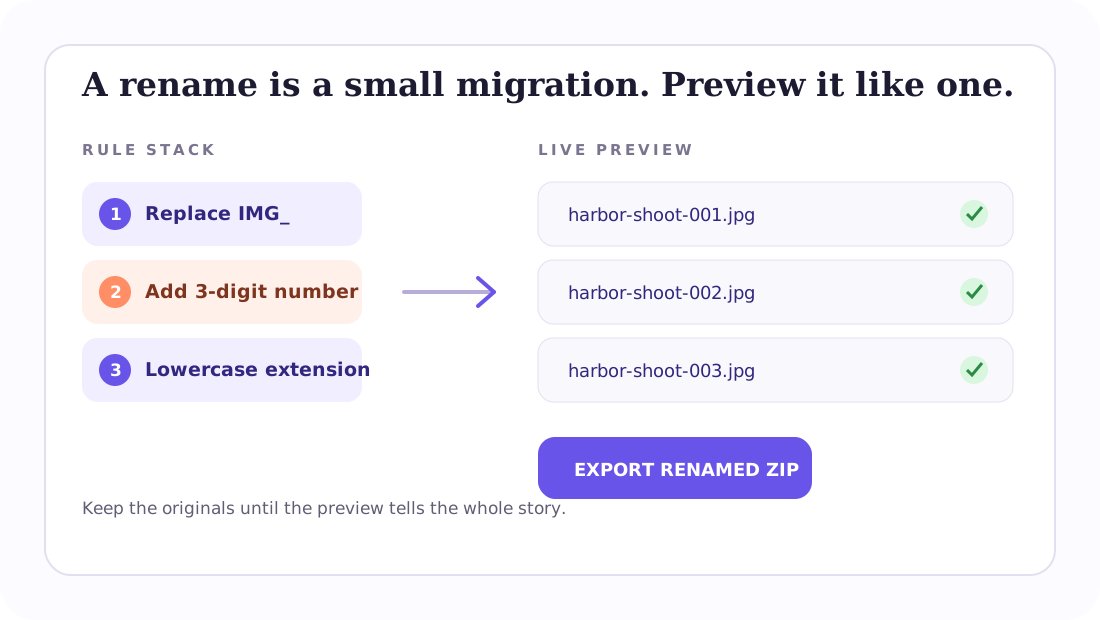
After the preview reads correctly from top to bottom, export the renamed ZIP. The original folder is still there, which gives you an uncomplicated fallback. The tradeoff is that the downloaded files arrive as new copies rather than being renamed in place. For a one-off batch, that separation is often a safety feature. For a recurring production workflow, a desktop preset or script may be more efficient.
5. Use PowerShell or Terminal for repeatable jobs
Command-line tools are worth learning when the same rule runs every week, the folder is generated by another system, or the rename is part of a larger automation. They are also unforgiving: a short command can touch far more files than the ones visible on screen.
On Windows, PowerShell’s Rename-Item documentation includes a multiple-file example using Get-ChildItem and a replacement expression. Start with -WhatIf so PowerShell prints the intended operations without applying them:
$i = 1
Get-ChildItem -File *.jpg | Sort-Object Name | ForEach-Object {
  $newName = "harbor-shoot-{0:D3}{1}" -f $i, $_.Extension.ToLower()
  Rename-Item -LiteralPath $_.FullName -NewName $newName -WhatIf
  $i++
}
Read every line of the dry run. Only then remove -WhatIf. Also note a documented limitation: Rename-Item renames an item but does not move it to another folder. A script that mixes move and rename logic needs a different cmdlet and more testing.
On a Mac, a shell loop can produce the same sequence. Print the mapping first instead of calling mv:
i=1
for file in *.jpg; do
  new=$(printf "harbor-shoot-%03d.jpg" "$i")
  printf '%s -> %s\n' "$file" "$new"
  ((i++))
done
This preview loop is intentionally incomplete: it shows the dangerous part—the mapping—without changing a byte. If the mapping is right, add the actual move command only after testing the script in a duplicate folder.
6. Which batch rename method should you choose?
| Situation | Best starting point | Why | Main limitation |
|---|---|---|---|
| Give a Windows selection one base name and numbers | File Explorer | Fast, built in, no setup | Very little rule control |
| Replace text or add a counter on Mac | Finder | Three useful native modes | Complex stacks take several rounds |
| Combine cleanup, prefix, case, and numbering | WebRenamer | Cross-platform live preview | Exports copies in a ZIP |
| Use regex inside Explorer | PowerRename | Powerful preview and Windows integration | Requires PowerToys |
| Repeat an exact rule on scheduled folders | PowerShell or shell script | Reproducible and automatable | Highest error cost |
Do not install a studio-sized application for a ten-file sequence. Do not rely on a one-click native rename for a 5,000-file archive with mixed patterns. Match the tool to the cost of the mistake. If you need to number photos after manually arranging them, use the visual photo sequence tool. If you want a fuller view of the options, the companion free file renamer comparison covers browser, built-in, desktop, and command-line tools.
Frequently asked questions
How can I batch rename files on Windows without installing software?
Select the files in File Explorer, press F2, enter a base name, and press Enter. Windows gives the selected files the same base name with numbered suffixes. This works well when sequential naming is all you need.
Can Finder replace part of several filenames at once?
Yes. Select the items, Control-click, choose Rename, then choose Replace Text. Finder can also add text before or after the current name, or apply a name format with a counter, index, or date.
Does changing a file extension convert the file?
No. Renaming .jpg to .png changes only the label after the dot; it does not re-encode the image. Convert the file with an appropriate application if you need a different format.
Are files uploaded when I use WebRenamer?
No. WebRenamer processes selected files in the browser on your device. It creates renamed copies in a ZIP while leaving the originals untouched.
The final check is part of the rename
A batch is finished only after you open the destination, sort by name, and scan the first, middle, and last files. Confirm that the numbering is continuous, extensions still match the file types, and no unrelated file joined the selection.
For a small native job, File Explorer or Finder is usually faster. For several rules and a cross-platform preview, start at the WebRenamer homepage and keep the originals until the exported set passes that final check.